Label Scan
Just photograph the back label, and your check-in draft is ready
What is Label Scan?
Photograph the back label of a sake, and Label Scan reads the brand along with what's written on the label — special designation, ABV, polishing ratio, rice variety and so on — to draft your check-in. Once you've checked the details, just check in as usual.
Photograph the back label
The back label is the side where the ingredients, polishing ratio, and alcohol content are printed together. The front label often carries only the brand name, so photographing the back label gives you a fuller draft.
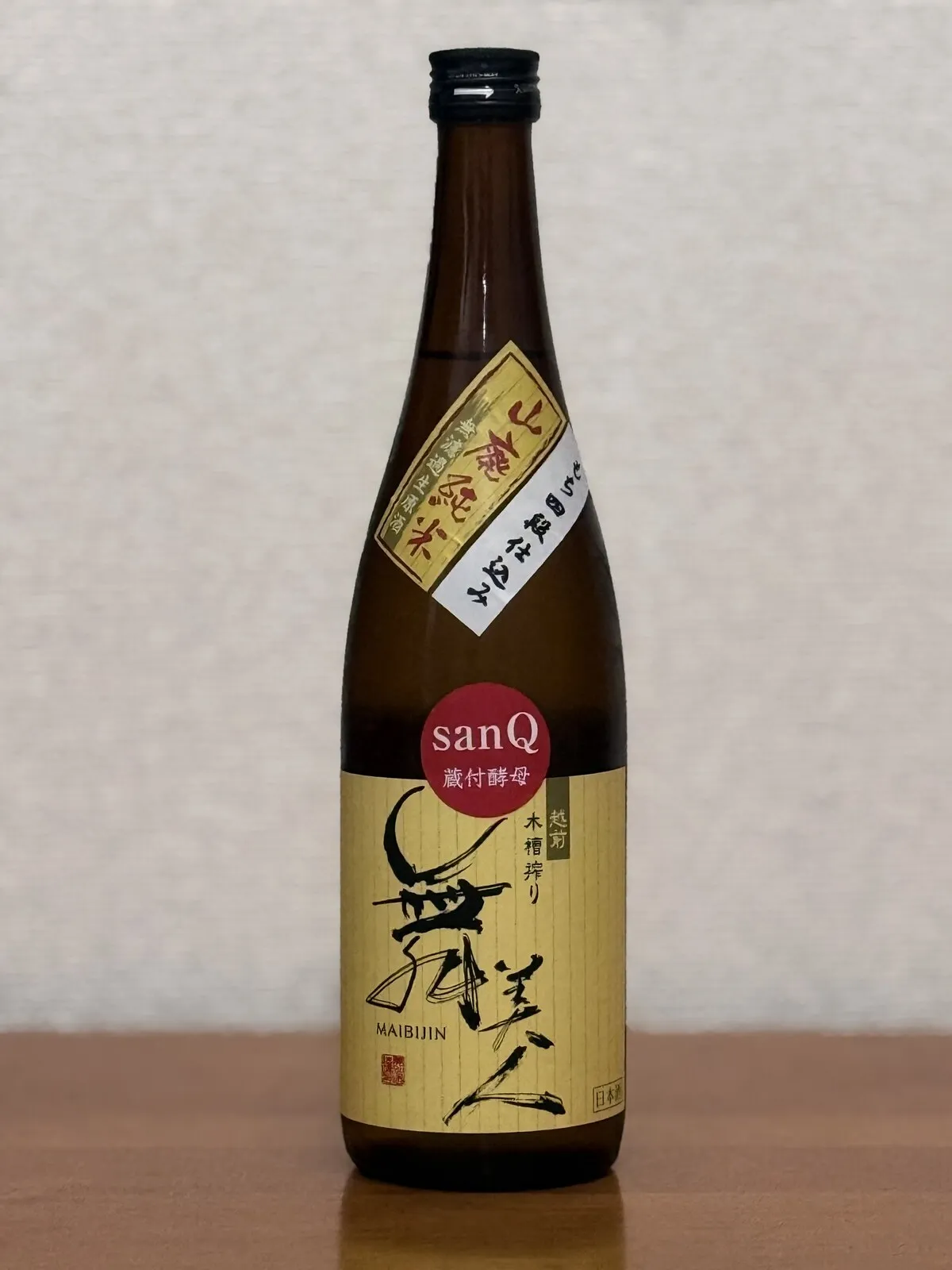
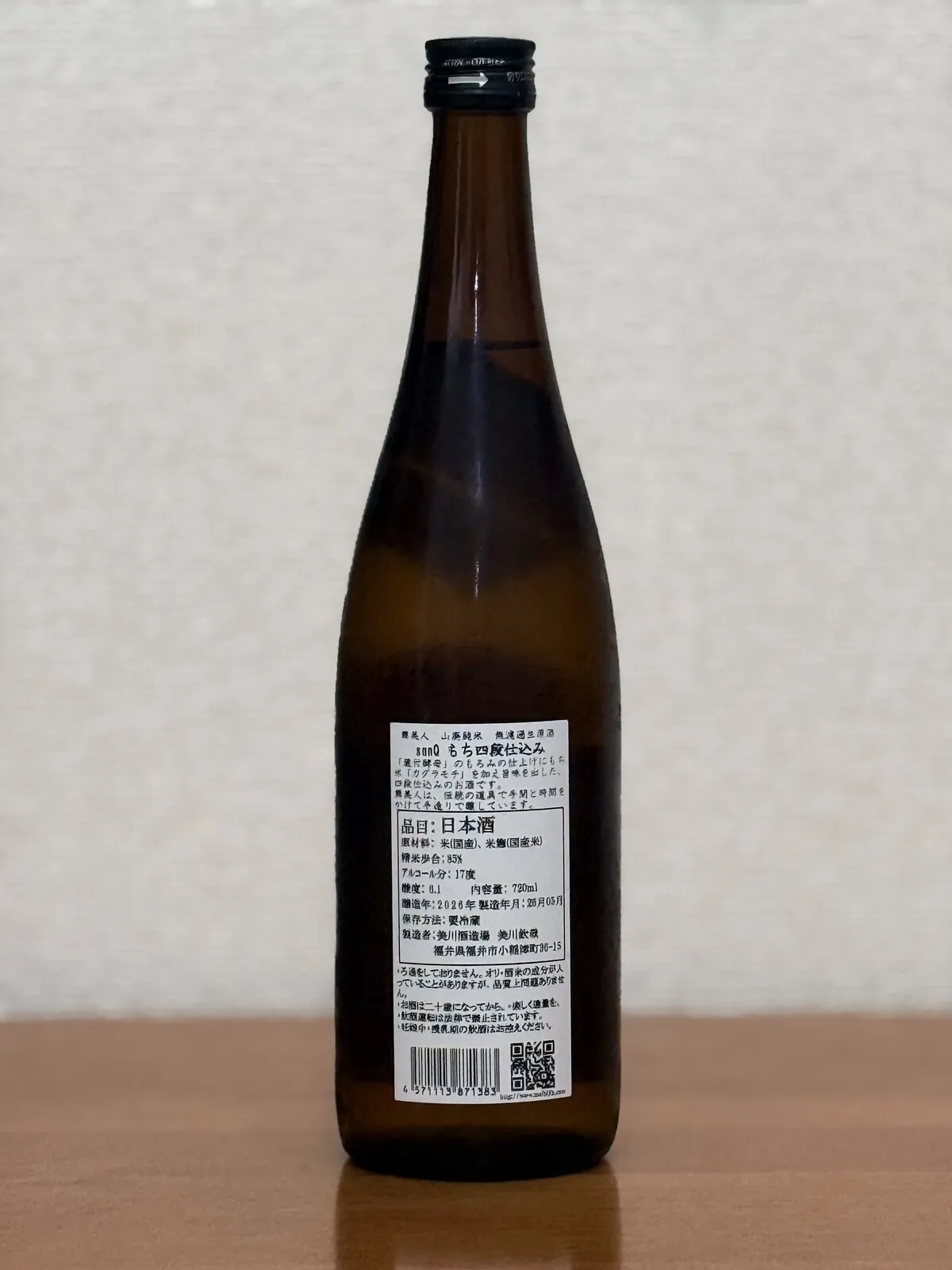
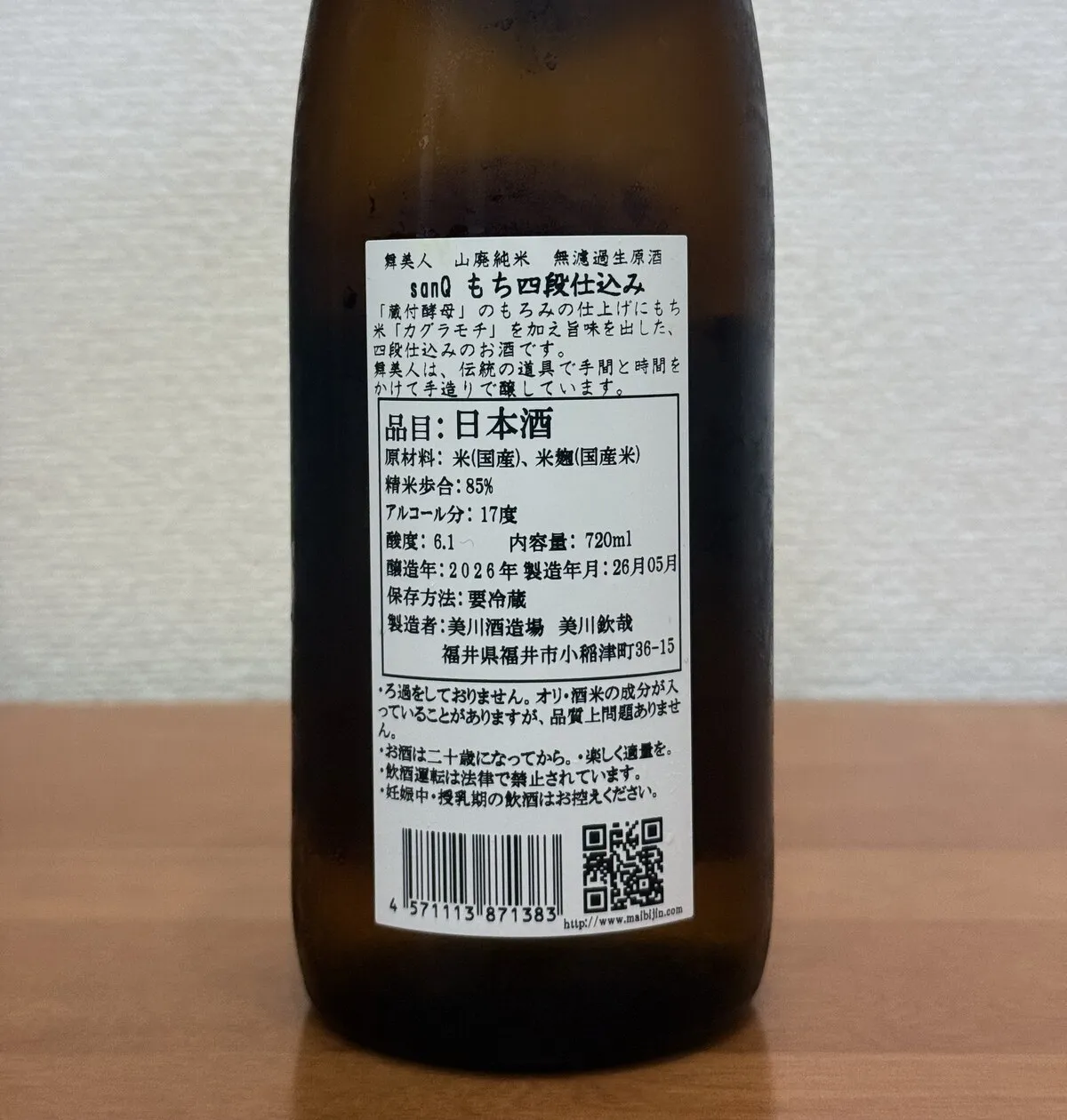
How to use it
- Choose "Label Scan" when you create a check-in
- Fit the back label in the frame and shoot
- Check the scan result (you can fix anything that's wrong)
- Write your thoughts in the form and check in
Choosing "Scan a label" on the check-in edit screen also lets you add label details to a check-in you've already posted.
Tips for a good scan
- Photograph the back label — the side with the ingredients
- Shoot in a bright place
- Fit the whole label in the frame
- Focus properly (blur and glare make the label harder to read)
Handwritten and decorative lettering may not be readable. Items we couldn't read are left blank.
How many scans you get
Each successful scan uses one. A scan that fails doesn't use one. You can see how many you have left on the camera screen.
About your photos
Images used for scanning are retained for a limited period for processing and are generally deleted afterward. The Sakenowa team may also review images when necessary to support the smooth operation of the service. If you attach an image to a check-in, it is stored as a regular check-in photo.
How the scanned details appear
The "label details" you confirm at check-in are shown on the check-in detail screen (public, just like the check-in itself).